


How to Permanently Wipe Data from a Hard Drive
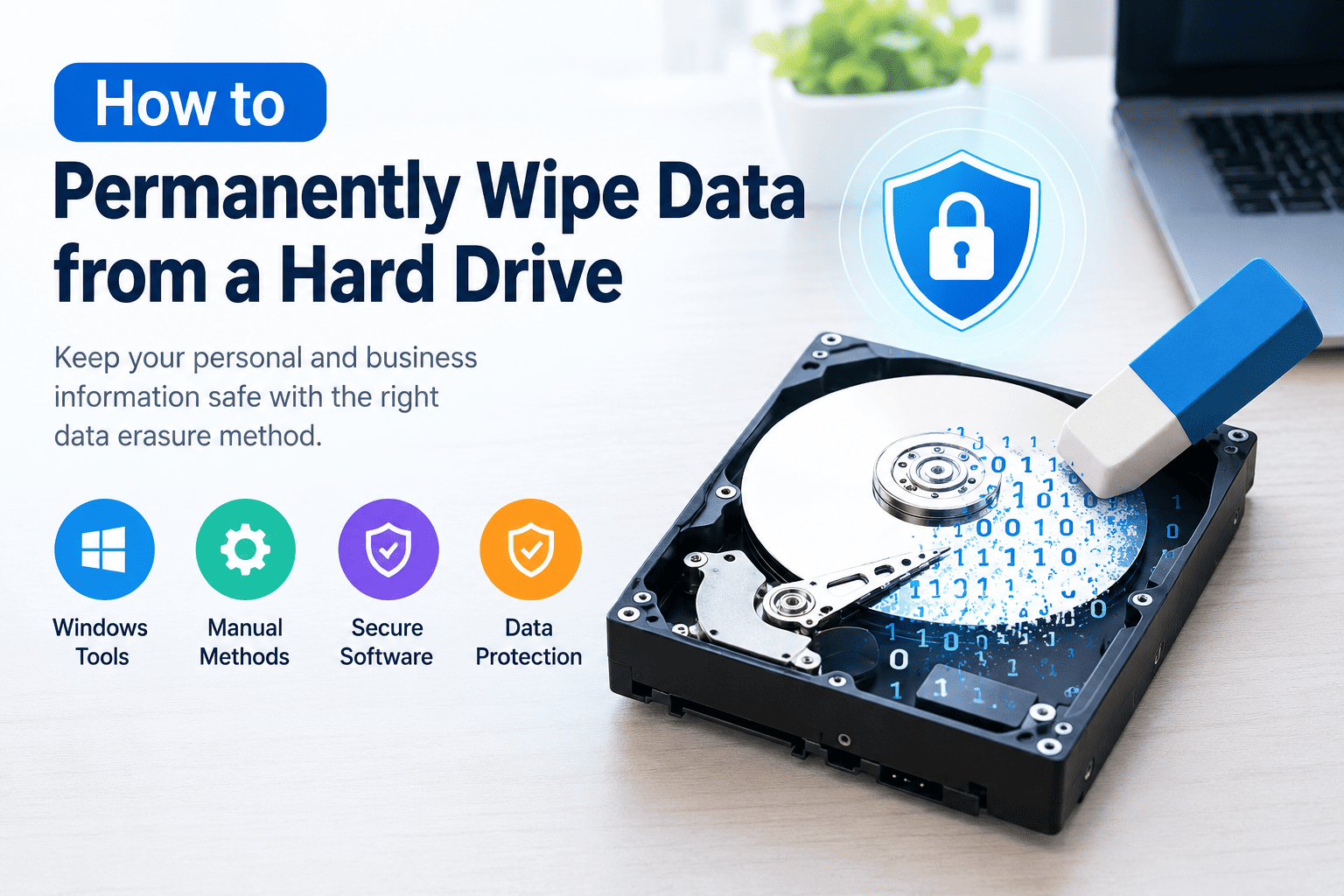
When you delete files from a hard drive, they may still be recoverable with data recovery software. Emptying the Recycle Bin or formatting a drive does not always remove the data permanently. If you plan to sell, donate, reuse, or dispose of a computer, you should choose a suitable data wiping method to protect your personal and business information.
You can permanently wipe data from a hard drive using built-in operating system tools, disk-wiping utilities, or professional data erasure software. The right method depends on the drive type, your computer, and the level of data protection you need.
What Does Permanently Wiping a Hard Drive Mean?
Permanently wiping a hard drive means using a suitable process to make the stored data unrecoverable. Unlike normal deletion, data wiping targets the underlying storage so that old files cannot be easily restored.
A proper method should match the storage device. Traditional hard disk drives (HDDs) and solid-state drives (SSDs) use different storage technologies, so the same wiping method may not work equally well for both.
Important: Back up important files before wiping a drive. A successful wipe can permanently remove your data, operating system, applications, and personal files.
How to Permanently Wipe Data from a Hard Drive Manually
You can use built-in Windows tools to wipe a drive without buying third-party software. These methods are useful for personal computers, but you must select the correct disk and understand their limitations.
Method 1: Use Windows DiskPart Clean All
DiskPart is a built-in Windows command-line utility. Its clean all command writes zeros to every addressable sector of the selected disk.
Steps:
- Back up all important files and disconnect other external drives to reduce the risk of selecting the wrong disk.
- Open Command Prompt or Windows Terminal as an administrator.
- Type
diskpartand press Enter. - Type
list diskto display the connected disks. - Type
select disk X, replacing X with the correct disk number. - Confirm the selected disk carefully by checking its size and details.
- Type
clean alland press Enter. - Wait for the operation to finish before closing the tool.
Limitation: This operation erases data from the selected disk and can take considerable time. It is mainly suitable for HDDs. It is not the preferred method for securely erasing SSDs because of their internal wear-leveling and storage management.
Method 2: Use Windows Reset Options
If you want to prepare a Windows computer for sale or transfer, Windows provides reset options that can remove personal files.
Steps:
- Open Settings.
- Go to System and select Recovery.
- Choose Reset this PC.
- Select Remove everything.
- Open the additional settings and enable the clean-data option if available.
- Review the settings and start the reset.
This method is convenient when you want to reset the entire Windows computer rather than wipe a secondary hard drive.
Limitation: Microsoft's clean-data option is intended for consumers and does not necessarily meet government, regulatory, or enterprise data-erasure requirements. Availability and steps vary by Windows version.
Method 3: Use a Manufacturer's Secure Erase Feature
Some HDDs and SSDs support manufacturer-provided secure erase or sanitize functions. These commands are designed for the drive's own storage technology.
Steps:
- Identify the drive model.
- Visit the manufacturer's official website.
- Check whether the drive supports Secure Erase or Sanitize.
- Follow the manufacturer's instructions and verify the result.
This can be a suitable option for SSDs when the correct supported command is used. Do not interrupt the process, and make sure you understand the consequences before starting.
How to Permanently Wipe a Hard Drive Using Software
Dedicated data-wiping software can make the process easier by providing a graphical interface, different erasure methods, and a record of the operation. It is useful when you need to wipe an entire drive, a partition, or selected files and folders.
Using PCVITA Hard Drive Data Wipe Tool
PCVITA Data Wipe is an option for users who need to erase data from supported storage devices. Before using it, check the current product documentation for supported drive types, erasure methods, and operating system requirements.
General Steps:
- Install and open PCVITA Data Wipe on a supported computer.
- Select the target drive, partition, or supported files and folders.
- Choose an available wiping method based on your security requirements.
- Check the selected device and data carefully before proceeding.
- Start the wiping process and wait for it to finish.
- Review the result and save the erasure report if the software provides one.
A dedicated tool can be helpful when you need a more guided process or documentation of the erasure. However, always confirm that the selected method is appropriate for your particular drive, especially if it is an SSD.
Which Data Wiping Method Should You Choose?
Choose a method based on your storage device and reason for erasing it.
- For an HDD: A full overwrite can be suitable when performed correctly.
- For an SSD: Prefer a supported Sanitize or Secure Erase function, or another manufacturer-approved method.
- For selling a Windows computer: Use the appropriate reset and data-cleaning options, while considering the sensitivity of the information.
- For business or confidential data: Choose a method that meets your organization's security requirements and verify the result.
- For formal compliance: Follow the applicable policy or standard, such as the relevant guidance in NIST SP 800-88.
Frequently Asked Questions
1. Does formatting a hard drive permanently erase data?
No. A quick format generally does not securely erase every underlying data area. Use a suitable erasure method if you need to prevent recovery.
2. Can wiped hard drive data be recovered?
A correctly completed and verified secure erase or suitable overwrite can make data recovery impractical. Results depend on the drive, the method, and whether the process covers the relevant storage areas.
3. Is overwriting safe for SSDs?
Repeated overwriting is generally not the preferred method for SSDs because wear-leveling can leave data in physical areas that ordinary writes do not directly reach. Use a supported sanitize or secure erase feature where appropriate.
4. How long does it take to wipe a hard drive?
The time depends on the drive capacity, connection speed, drive condition, and selected method. A full overwrite of a large HDD can take several hours.
5. What should I do before wiping a hard drive?
Back up important files, verify the target drive, save any required recovery keys or licenses, and ensure you have the installation or recovery media needed if you plan to reuse the computer.
Conclusion
To permanently wipe data from a hard drive, choose a method that matches the drive type and the sensitivity of the information. Windows tools can help with basic erasure tasks, while manufacturer-supported secure erase functions are often more suitable for SSDs. Dedicated software such as PCVITA Data Wipe may provide a guided process and reporting features for supported devices.
Always back up important data, double-check the selected drive, and verify the outcome before selling, donating, or disposing of the device.
 Italiano
 English
 Arabic
 French
 Spanish
 Portuguese
 Deutsch
 Turkish
 Dutch
Dutch
 Russian
 Romaian
 Portuguese (Brazil)
 Greek
Greek