


IPTV on Fire TV Stick: Setup, Performance, and Troubleshooting Guide
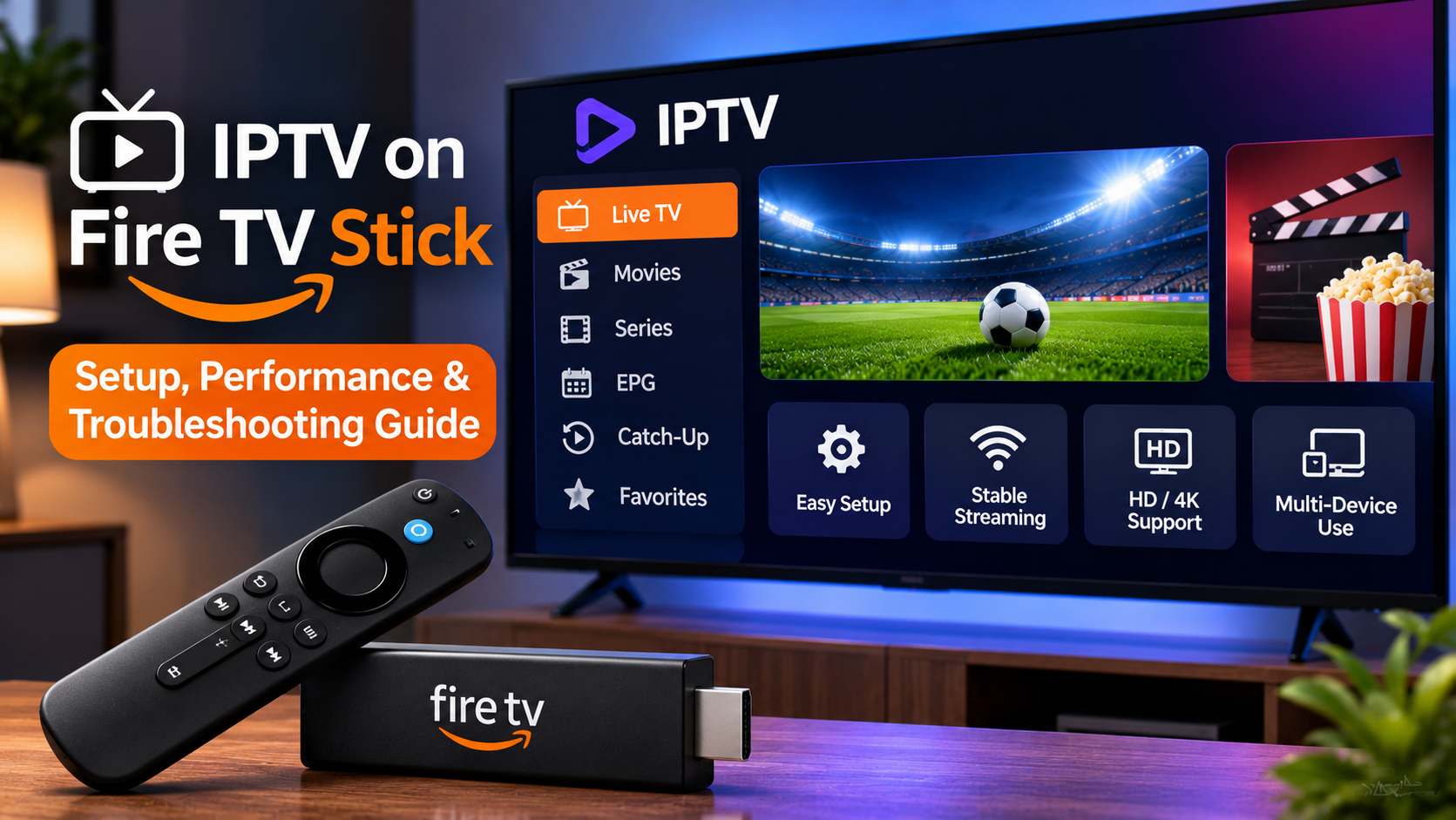
Amazon Fire TV devices provide a convenient way to turn a compatible television into a streaming hub. Their compact size, simple remote control, Wi-Fi connectivity, and support for streaming applications make them popular with viewers who want internet-based television without replacing an existing TV.
IPTV can also be used on compatible Fire TV devices, but the overall experience depends on several factors. The IPTV player, internet connection, device storage, login method, video format, and account settings can all influence performance.
Understanding these areas before setting up IPTV can help users create a cleaner and more reliable viewing experience.
How IPTV Works on Fire TV
IPTV delivers television and video content through an internet connection rather than traditional cable or satellite infrastructure.
On a Fire TV device, users normally install a compatible IPTV player and then add the access information provided by their IPTV service.
Depending on the player, this information may include:
-
Username and password
-
Server address
-
M3U playlist URL
-
Portal information
-
Other supported account details
Once configured, the application can organize available live TV, movies, series, and other supported content into a television-friendly interface.
Check Your Fire TV Model
Not every Fire TV device has identical hardware.
Different generations can vary in:
-
Processor performance
-
Available memory
-
Internal storage
-
Wi-Fi capabilities
-
Supported video formats
-
Maximum video resolution
An older device may run basic IPTV streams successfully but struggle with demanding applications or high-resolution content.
Users should therefore consider the capabilities of their particular device before expecting the same performance seen on newer hardware.
Choose a Compatible IPTV Player
The IPTV player is an important part of the setup.
It does not normally provide the television service itself. Instead, it acts as the interface through which the IPTV account is accessed.
Useful features may include:
-
Live TV categories
-
Movies and series sections
-
Electronic Program Guide
-
Favorites
-
Search
-
Catch-up support
-
Subtitles
-
Alternative audio tracks
-
Parental controls
-
External player support
The best player is not necessarily the one with the largest number of settings. It should be easy to navigate with the Fire TV remote and compatible with the login format supplied by the IPTV provider.
Understand the Login Method
Before installing a player, check what type of access information you have.
M3U Playlist
An M3U playlist is commonly supplied as a web address.
Compatible IPTV players can import the playlist and organize available streams.
Entering a long URL using a television remote can be inconvenient, so careful input is important.
Username and Password
Some applications allow users to enter a server address, username, and password separately.
This can be easier to manage on a television interface.
Portal Access
Some IPTV systems use portal-based access.
Compatibility varies, so the player should specifically support the required connection method.
Install Applications From Trusted Sources
Fire TV devices provide access to a range of streaming applications, but users should be cautious when installing software.
Whenever possible, use trusted application sources and verify the developer before entering IPTV credentials.
Avoid applications that request unrelated personal information or unnecessary device permissions.
IPTV usernames, passwords, and playlist URLs can provide access to an account and should be treated as private information.
Internet Stability Matters
Fire TV relies heavily on Wi-Fi in many households.
A broadband connection may be fast enough overall while still providing an inconsistent wireless signal near the television.
Common causes of streaming problems include:
-
Distance from the router
-
Thick walls
-
Wireless interference
-
Too many connected devices
-
Large background downloads
-
Network congestion
-
Poor router placement
Consistent connectivity is particularly important for live television because the stream must continue arriving without long interruptions.
Improve Wi-Fi Performance
If IPTV buffers frequently, first evaluate the home network before changing application settings.
Move the Router if Possible
A router hidden inside a cabinet or placed far from the television may provide weaker coverage.
A more central and open position can improve Wi-Fi performance.
Reduce Network Congestion
Large game downloads, cloud backups, and several simultaneous video streams can compete for bandwidth.
Pausing unnecessary activity can sometimes improve IPTV immediately.
Restart the Router
A router restart can resolve temporary connection problems.
Allow the network to reconnect completely before testing IPTV again.
Consider Ethernet
Some Fire TV setups can use Ethernet through compatible adapters.
A wired connection can provide greater consistency than weak Wi-Fi, particularly when the television remains in one location.
Ethernet may be worth testing when:
-
Wi-Fi signal strength is poor
-
Live streams frequently buffer
-
Several nearby wireless networks cause interference
-
The Fire TV device is close to the router
If IPTV performs better over Ethernet, the original problem was likely related to the wireless network.
Manage Fire TV Storage
Streaming devices often have limited internal storage.
Over time, applications, updates, cached files, and downloaded data can reduce the amount of free space available.
Low storage can make the interface slower and contribute to application problems.
Periodically review installed applications and remove software that is no longer needed.
Users should be careful when clearing IPTV application data because this may remove login information and settings.
Restart the Device Periodically
Fire TV devices can remain active for long periods without a full restart.
A restart can clear temporary memory and background processes.
If an IPTV application becomes unusually slow, freezes, or fails to load correctly, restarting the Fire TV device is a sensible early troubleshooting step.
There is usually no need to reinstall the application immediately.
Use Favorites for Faster Navigation
Large IPTV libraries can take time to browse with a television remote.
Favorites can make navigation much easier.
Users can create a smaller list containing regularly watched:
-
News channels
-
Sports channels
-
Entertainment
-
Children's programming
-
International television
This reduces unnecessary scrolling and makes the IPTV player feel more personalized.
Electronic Program Guide Support
An Electronic Program Guide, or EPG, can significantly improve live TV navigation.
Depending on the service and application, the guide may display:
-
Current programs
-
Upcoming schedules
-
Program start times
-
Channel information
-
Program descriptions
A well-designed EPG is particularly useful on Fire TV because viewers can browse programming directly with the remote.
If the guide is empty, first confirm that EPG information is actually supplied before repeatedly reinstalling the application.
Catch-Up TV
Some IPTV services support catch-up television on selected channels.
Catch-up may allow viewers to open programs that aired earlier without having recorded them manually.
For this to work correctly, several components need to support the feature:
-
IPTV service
-
Channel
-
IPTV player
-
Account
-
EPG data
The presence of a catch-up button in an application does not automatically mean every channel supports archived playback.
Subtitles and Audio Tracks
Fire TV can also be useful for international television and movies.
A compatible IPTV player may allow users to select:
-
Subtitle languages
-
Alternative audio tracks
-
Subtitle timing
-
Caption appearance
Availability depends on the media source.
If subtitles work on some content but not others, the missing track may simply not be included with that particular program.
IPTV Player Performance
Some applications consume more device resources than others.
If the Fire TV interface becomes slow while using a feature-heavy player, consider testing a lighter alternative.
Player performance can depend on:
-
Device generation
-
Available memory
-
Internal storage
-
Video decoder
-
Application design
-
Background processes
A simpler player that performs smoothly can provide a better everyday experience than a more advanced application that constantly freezes.
Hardware Decoding
Some IPTV players allow users to choose between hardware and software decoding.
Hardware decoding uses specialized device components to process video and can reduce processor usage.
Software decoding may help when a particular video format does not play correctly through hardware acceleration.
If video and audio work normally, there is usually no reason to change the default decoder.
Test alternatives only when a specific playback issue exists.
Avoid Excessive Buffer Adjustments
Some IPTV applications provide buffer controls.
Increasing the buffer may help with brief network instability, but a very large buffer can make channel switching slower and increase live-stream delay.
Start with the default setting.
Only change the buffer if buffering remains after checking the internet connection and device performance.
Multi-Device IPTV Usage
A household may have IPTV configured on Fire TV, a Smart TV, smartphone, and tablet.
However, installing the account on several devices does not necessarily mean all devices can stream simultaneously.
The subscription may limit the number of active connections.
When comparing available IPTV services, viewers can review ZYRA IPTV alongside other providers while considering subscription options, supported devices, multi-device requirements, setup information, and streaming features.
The appropriate plan depends on how many household members actually watch at the same time.
Common Fire TV IPTV Problems
Most issues can be approached systematically.
IPTV App Will Not Open
Restart the application and Fire TV device.
Check whether an application update is available.
Channels Keep Buffering
Test another streaming service on the same device.
If everything is slow, investigate the internet connection.
Login Is Rejected
Check the username, password, server URL, or playlist address carefully.
Avoid accidental spaces when entering information.
Some Channels Work but Others Do Not
Test several streams.
If most channels work normally, the issue may be limited to specific content rather than the entire device.
No Sound
Check whether another audio track is selected.
If the problem affects only certain streams, codec compatibility may also be involved.
App Feels Slow
Check available storage, close unnecessary applications, and restart the Fire TV device.
Keep Fire TV Updated
Fire TV system updates can include security fixes, performance improvements, and application compatibility changes.
Users should also update the IPTV player when a trusted new version becomes available.
Keeping both the operating system and application current can reduce avoidable playback problems.
Protect Account Information
IPTV credentials should not be shared publicly.
Avoid posting:
-
Screenshots containing passwords
-
M3U playlist URLs
-
Server credentials
-
Portal information
-
Account usernames
If an IPTV application is no longer used, remove saved account information where practical.
Use Parental Controls Where Necessary
Families can also combine IPTV player restrictions with Fire TV's device-level controls.
Depending on the setup, parents may be able to:
-
Lock selected applications
-
Protect purchases
-
Restrict IPTV categories
-
Use PIN codes
-
Limit access to settings
The available options depend on the application and device configuration.
Consider Content Licensing
Fire TV is simply the hardware used to access internet-based entertainment.
Using IPTV on the device does not determine whether particular television programming is properly licensed.
Users should choose legitimate services, review applicable local laws, and confirm that they are authorized to access the content provided.
Final Thoughts
Fire TV devices can provide a practical platform for IPTV, particularly for televisions that do not support a preferred IPTV application directly.
A reliable setup starts with selecting a compatible player, entering the correct login information, maintaining a stable internet connection, and keeping enough device storage available.
Features such as EPG, favorites, subtitles, catch-up TV, and parental controls can improve everyday use, but performance should remain the priority.
By keeping the Fire TV device updated, testing network quality, protecting account credentials, and troubleshooting one issue at a time, viewers can build a simpler and more manageable IPTV setup for regular home entertainment.
 Spanish
 English
 Arabic
 French
 Portuguese
 Deutsch
 Turkish
 Dutch
 Italiano
 Russian
 Romaian
 Portuguese (Brazil)
 Greek