


IPTV on Windows and Mac: Choosing the Right Desktop Setup
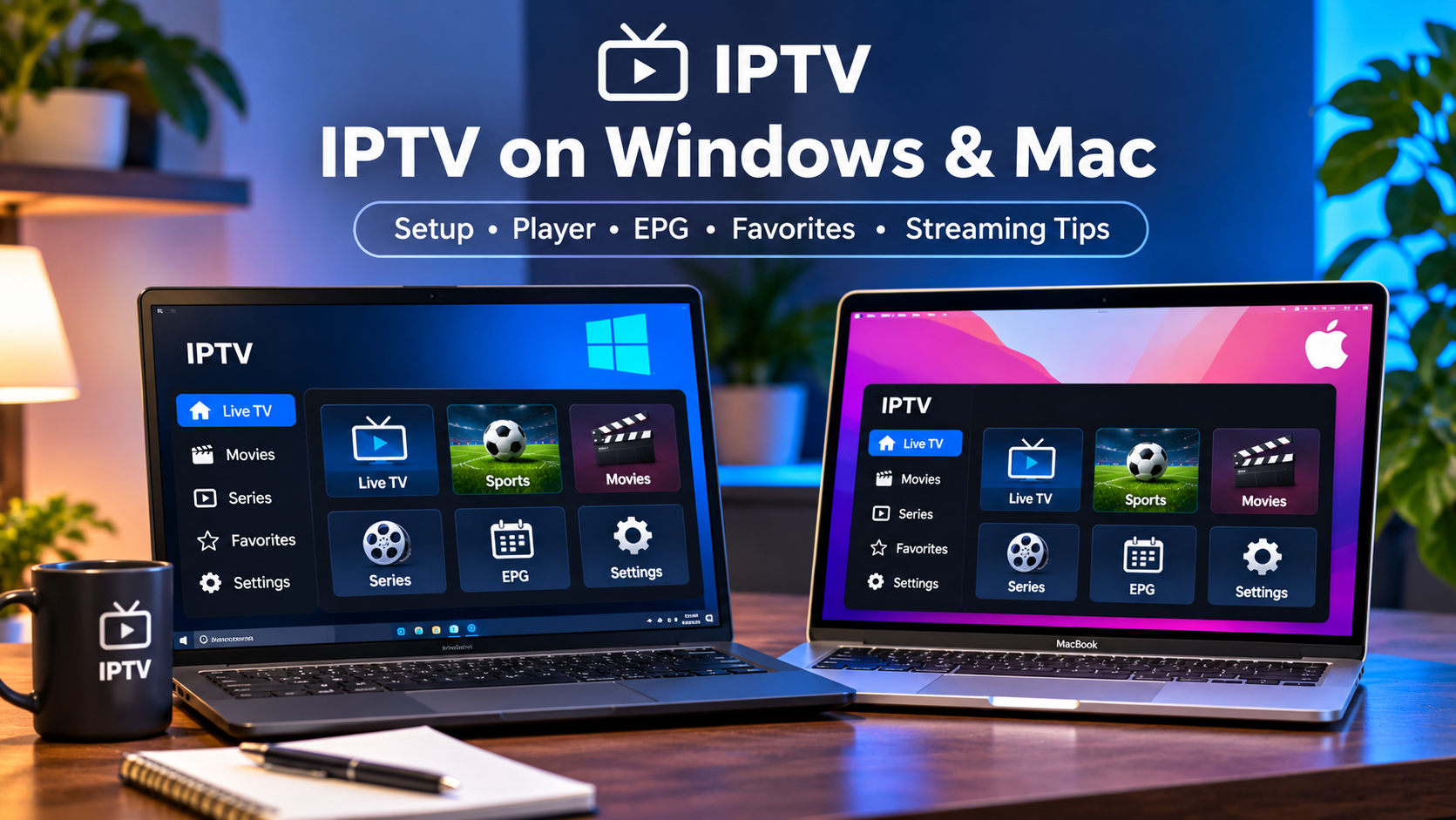
IPTV is often associated with Smart TVs and streaming boxes, but desktop and laptop computers can also provide a flexible viewing experience. Windows PCs and Macs can be useful for watching live television, sports, movies, and series, particularly when users want a larger screen than a phone without being tied to the living-room television.
The quality of the experience depends on the IPTV player, network connection, computer performance, and the login format supplied by the service.
Why Use IPTV on a Computer?
A computer can be convenient because it combines a large display with more control over applications and network settings.
Desktop IPTV viewing can be useful for:
-
Watching television while working at a desk
-
Using an external monitor
-
Traveling with a laptop
-
Testing IPTV credentials
-
Troubleshooting playlists
-
Watching content in another room
-
Using headphones for private viewing
Computers can also make it easier to switch between IPTV and other applications without changing devices.
IPTV on Windows
Windows supports a wide variety of media and IPTV applications.
Depending on the player, users may be able to connect using:
-
M3U playlists
-
Xtream-style credentials
-
Portal information
-
Server URLs
-
Username and password details
The best application should provide straightforward navigation and reliable playback rather than unnecessary complexity.
Useful features may include favorites, EPG support, search, subtitle controls, and playlist organization.
IPTV on macOS
Mac users can also access IPTV through compatible applications.
The available software may differ from Windows, so users should confirm that the chosen player supports their version of macOS and the login method provided by the IPTV service.
For Mac users, a clean interface and reliable keyboard or trackpad navigation can be especially useful.
Some applications may also synchronize settings across Apple devices, although this depends entirely on the player.
Dedicated Player vs Browser Viewing
IPTV can sometimes be accessed through either an installed application or a web-based interface.
Each method has advantages.
Dedicated IPTV Player
A dedicated application may provide better support for:
-
Channel categories
-
Favorites
-
EPG data
-
Multiple playlists
-
Subtitles
-
Audio tracks
-
Full-screen viewing
It can also provide more control over playback settings.
Browser-Based Viewing
Browser access can be convenient because users do not need to install additional software.
However, browser functionality depends on the service and may provide fewer features than a dedicated IPTV player.
For frequent viewing, an installed application is often easier to organize.
Use a Stable Internet Connection
Streaming quality depends heavily on network stability.
A laptop connected to weak Wi-Fi may experience buffering even when the household has a fast internet package.
Common causes include:
-
Distance from the router
-
Thick walls
-
Wireless interference
-
Multiple simultaneous streams
-
Large downloads
-
Cloud backups
Users should test the connection from the same computer used for IPTV rather than relying on a speed test performed near the router.
Ethernet Can Improve Desktop Streaming
Desktop computers are often positioned close enough to the router for Ethernet to be practical.
A wired connection can provide more consistent performance and reduce wireless interference.
Ethernet may be especially helpful when:
-
IPTV is watched for long periods
-
Several household devices use Wi-Fi
-
High-resolution content is common
-
The Wi-Fi signal is inconsistent
Laptops without built-in Ethernet may require a compatible adapter.
Close Heavy Background Applications
Computers frequently run several processes at once.
While IPTV is streaming, other software may also be:
-
Downloading files
-
Updating games
-
Synchronizing cloud storage
-
Uploading backups
-
Running video calls
-
Using a VPN
These activities can consume bandwidth or system resources.
If playback becomes unstable, closing unnecessary programs can help determine whether the computer itself is under excessive load.
Organize Channels With Favorites
Desktop screens provide plenty of space, but large IPTV libraries can still become difficult to navigate.
Favorites help reduce clutter.
Users can create quick access to commonly watched:
-
Nordic channels
-
Sports
-
News
-
Movies
-
Entertainment
-
International channels
A smaller favorites list is generally more useful than saving hundreds of channels.
Use the EPG for Live Television
An Electronic Program Guide can make desktop IPTV easier to browse.
When suitable EPG data is available, users may be able to see:
-
Current programs
-
Upcoming schedules
-
Start and end times
-
Program descriptions
A larger computer monitor can make detailed program guides particularly easy to navigate.
If the schedule appears at the wrong time, users should check the computer's date and timezone settings.
Configure Full-Screen Playback
Watching IPTV in a small application window may be useful while multitasking, but full-screen mode provides a more television-like experience.
Most players provide a dedicated full-screen control.
Users with multiple monitors can also place IPTV on one display while keeping work or browsing on another.
This can make a desktop setup particularly practical for sports, news, or long viewing sessions.
Check Subtitle Support
Computers are often good devices for multilingual viewing because many desktop players provide detailed subtitle settings.
Depending on the stream and application, users may be able to adjust:
-
Subtitle language
-
Font size
-
Position
-
Timing
-
Text appearance
These options can be useful for Nordic viewers who watch content in Swedish, Danish, Norwegian, Finnish, English, or other languages.
Subtitle availability still depends on the individual stream.
Audio Track Selection
Some IPTV content contains multiple audio tracks.
A compatible desktop player may allow viewers to select between available languages or audio options during playback.
If no alternative track appears, the stream may simply contain one audio source.
The player cannot create additional audio tracks that are not present in the content.
Consider Computer Performance
Modern IPTV playback usually does not require an extremely powerful computer, but older hardware may struggle with demanding video formats or high resolutions.
Performance can be affected by:
-
Processor capability
-
Available memory
-
Graphics support
-
Operating system age
-
Other running applications
If HD works smoothly but higher-resolution playback stutters, hardware limitations may be contributing to the problem.
Keep the IPTV Player Updated
Application updates can improve compatibility and stability.
Users should periodically update:
-
IPTV software
-
Windows or macOS
-
Network drivers
-
Browser software
-
Security applications
Updates may resolve playback bugs, login problems, or compatibility issues.
Be Careful With Unknown Software
Desktop computers often contain personal files, saved passwords, and work-related information.
For this reason, users should avoid downloading IPTV players from untrusted sources.
Good security practices include:
-
Using reputable software sources
-
Keeping the operating system updated
-
Protecting IPTV credentials
-
Avoiding unknown executable files
-
Removing unused applications
Security should be considered part of the streaming setup, not an afterthought.
Compare Services With Desktop Compatibility in Mind
Before selecting an IPTV service, users should check whether it supports the login format and devices they intend to use.
People researching Nordic-focused IPTV options can review VIKING IPTV while considering subscription information, device support, setup guidance, and their preferred desktop viewing method.
Confirming compatibility first can help prevent unnecessary configuration problems.
Troubleshooting IPTV on Windows or Mac
If playback stops working, users can follow a simple sequence.
Restart the Player
Close the IPTV application completely and reopen it.
Check the Internet Connection
Test another website or streaming service.
Restart the Router
If several devices are affected, the network may be the problem.
Try Another Channel
If most channels work normally, the issue may be limited to a specific stream.
Check for Updates
Install available player and operating system updates.
Restart the Computer
A restart can clear temporary memory or network problems.
Avoid Unnecessary Multitasking
One advantage of computer viewing is multitasking, but excessive multitasking can also reduce performance.
Playing games, rendering video, downloading large files, and streaming IPTV simultaneously can place heavy demands on the computer.
If IPTV quality drops, closing resource-intensive applications can help identify whether system load is contributing to the problem.
Use External Displays When Needed
Laptop users can connect an external monitor or compatible television for a larger viewing experience.
Depending on the computer, this may involve HDMI, USB-C, or another supported display connection.
Users should confirm that both the computer and external display support the desired resolution.
This provides another way to use a laptop as part of a home entertainment setup without purchasing a dedicated streaming box.
Final Thoughts
Windows PCs and Macs can provide a flexible alternative to Smart TVs and streaming devices for IPTV viewing.
A reliable setup depends on choosing a compatible player, maintaining a stable internet connection, organizing channels, keeping software updated, and matching video quality to the computer's capabilities.
For viewers who already spend significant time on a desktop or laptop, IPTV on a computer can provide a convenient way to access live television and entertainment without adding another device to the home.
 Russian
 English
 Arabic
 French
 Spanish
 Portuguese
 Deutsch
 Turkish
 Dutch
 Italiano
 Romaian
 Portuguese (Brazil)
 Greek